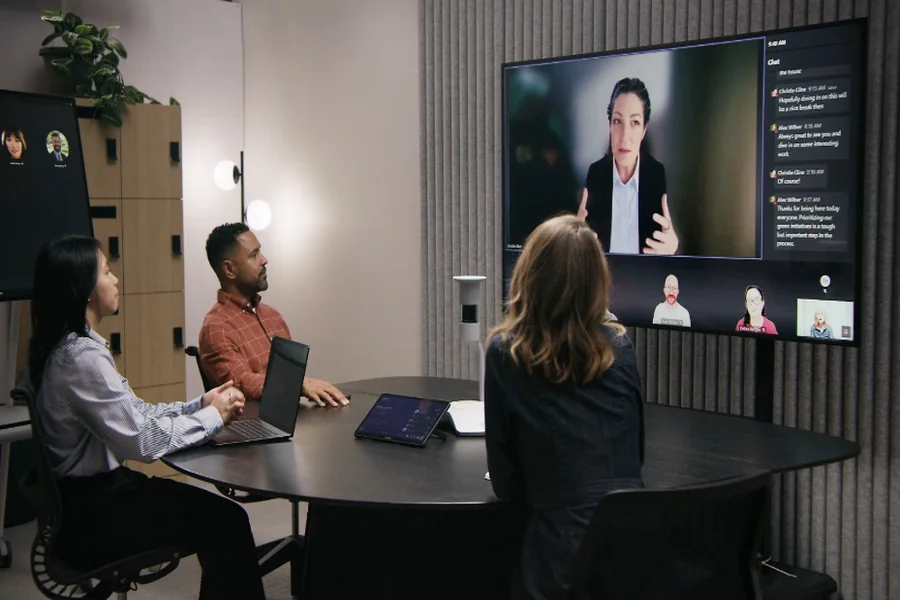

Teams can use Surface devices for real-time document collaboration by saving files in OneDrive or SharePoint, opening them in Microsoft 365 on each Surface, and editing together with AutoSave switched on. Surface Pen and touch make marking up drafts quick, while Teams handles the conversation. The result is one live document that everyone shapes at the same time.
Anyone who has chased five email attachments called “final_v3_revised” knows why live collaboration matters. Surface devices suit this style of work because they combine a proper keyboard, a touchscreen and a pen in one lightweight unit, and you can Learn More about how teams bring them in for projects without buying a whole fleet. Here is how to set it up so it actually works.
How Does Real-Time Collaboration Work on Surface?
Store the document in OneDrive or SharePoint, share it with the right permissions and open it in Word, Excel or PowerPoint on each Surface. Changes appear for everyone within moments, and comments, version history and Teams chat keep the discussion organised in one place.
What Is Real-Time Document Collaboration?
Real-time document collaboration, often called co-authoring, means several people edit the same file at once and see each other’s changes as they happen. It replaces emailing copies back and forth and removes the problem of merging conflicting versions by hand.
Why Surface Devices Suit Collaborative Work
Surface devices run Windows and Microsoft 365 natively, so the apps behave the way people expect. The detachable keyboard handles drafting, the touchscreen and Surface Pen cover quick edits and annotation, and the cameras and microphones support video calls without extra kit.
Hardware still has to come from somewhere. Teams planning Microsoft Surface hire often ask a provider such as Tablethire for matching devices that arrive signed in, updated and ready for the project, so nobody spends the first workshop fighting updates.
How to Set Up Real-Time Collaboration: Step by Step
- Choose one home for files. Use a shared OneDrive folder, a SharePoint library or a Teams channel, so everyone knows where the live version sits.
- Set permissions deliberately. Give editors edit access, reviewers comment access and observers view-only access.
- Turn on AutoSave. It keeps changes flowing to the cloud, which is what makes co-authoring work.
- Agree on a structure. Split a long document into sections and assign owners so people are not typing over each other.
- Use comments and mentions. Tag colleagues with @ mentions to request input without leaving the document.
- Review the version history. If something goes wrong, restore an earlier version rather than rewriting from memory.
Matching Surface Features to Collaboration Tasks
This table shows which features support which parts of the workflow.
| Collaboration task | Surface feature that helps | Typical tool |
| Co-authoring a document | Detachable keyboard and touchscreen | Word, Excel or PowerPoint with AutoSave |
| Marking up drafts | Surface Pen with palm rejection | Word, PDF and OneNote ink |
| Whiteboarding ideas | Touch and pen on a large display | Microsoft Whiteboard |
| Video discussion | Front camera and microphones | Microsoft Teams |
| Review and sign-off | Quick sign-in with Windows Hello | Comments, version history, Teams chat |
Where Surface Devices Fit Different Situations
1.Workshops and Events
Planning sessions, hackathons and strategy days benefit from devices that work straight out of the box. Microsoft Surface hire for events lets organisers hand each table a set of identical machines, already logged in to the right workspace.
2. Short-Term Projects
Contract teams, audits and campaign sprints rarely justify a permanent purchase. A short-term Surface rental covers the project window and goes back once the work is done.
3. Day-to-Day Business Teams
Departments with seasonal peaks or temporary staff often choose Surface rental for business, so every new starter gets a consistent, managed device from the first morning.
4. Creative and Review Work
Designers, editors and managers marking up drafts with a pen get faster feedback than with typed comments alone. A Surface Pro rental suits teams who want that pen-first review style without equipping the whole company.
Habits That Make Collaboration Run Smoothly
- Name files clearly and keep one master copy.
- Avoid working offline on shared files, since conflicts take longer to resolve.
- Use comments for questions and suggestions for edits, so changes stay traceable.
- Keep video calls short and let the document hold the detail.
- Assign one person to tidy formatting at the end.
Security and Data Handling
Protect shared documents with sign-in through Windows Hello or a strong password, multi-factor authentication and device encryption. Limit sharing links to named people and remove access when a project ends. When devices are returned, sign out of all accounts and make sure each is reset to a clean state.
Common Mistakes to Avoid
The usual problems are scattered file locations, unclear permissions and teams editing offline. Others include no agreed owner for each section and failing to test the network before a workshop. All of them are quick to fix with a short checklist at the start.
Frequently Asked Questions
1. Can several people edit a Word document at the same time?
Yes. When the file is saved in OneDrive or SharePoint, multiple people can edit it together and see changes appear live.
2. Do I need Microsoft 365 for real-time collaboration?
You need a Microsoft 365 account with access to the shared storage. Each person signs in on their own device.
3. What does Surface Pen add to collaboration?
It lets reviewers mark up documents, sketch ideas and annotate PDFs by hand, which is faster than typing for visual feedback.
4. What happens if two people edit the same sentence?
Co-authoring shows who is editing where, and you can restore earlier versions from version history if needed.
5. Can I collaborate while on a video call?
Yes. Open the document in Teams or alongside it and edit while you talk.
6. How do I keep shared files secure?
Use named sharing, multi-factor sign-in and device encryption, and remove access once the project ends.
Final Thoughts:
Good collaboration is mostly about habit. Keep one live file, agree who owns what and give the team devices that simply work. For teams who want dependable hardware without the setup headache, Tablethire is a trusted provider to speak to early, with Surface devices supplied, configured and ready for the first session.